History and data
Find, reprint and regenerate the documents produced, exchange your data with Excel, back up.
The history
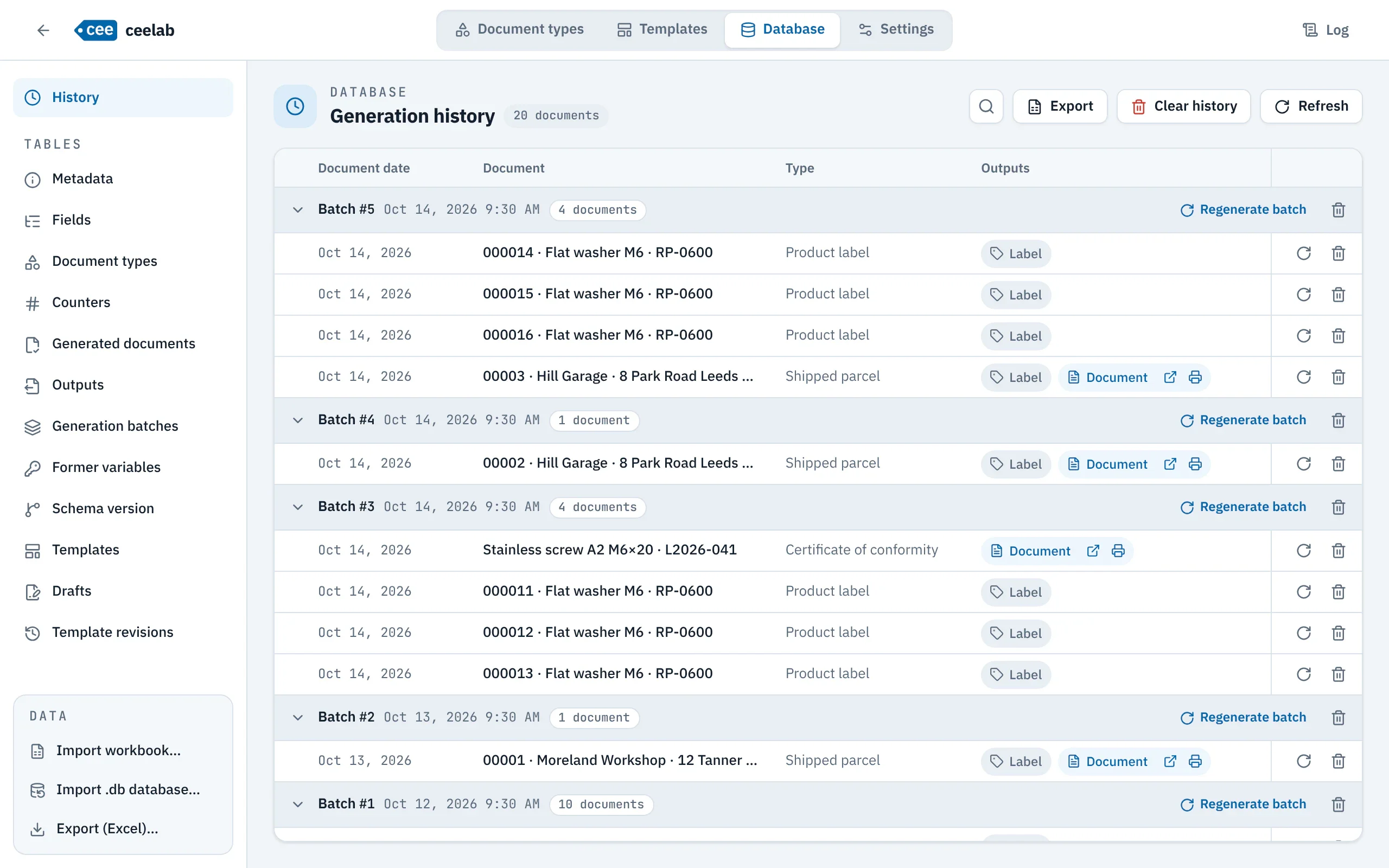
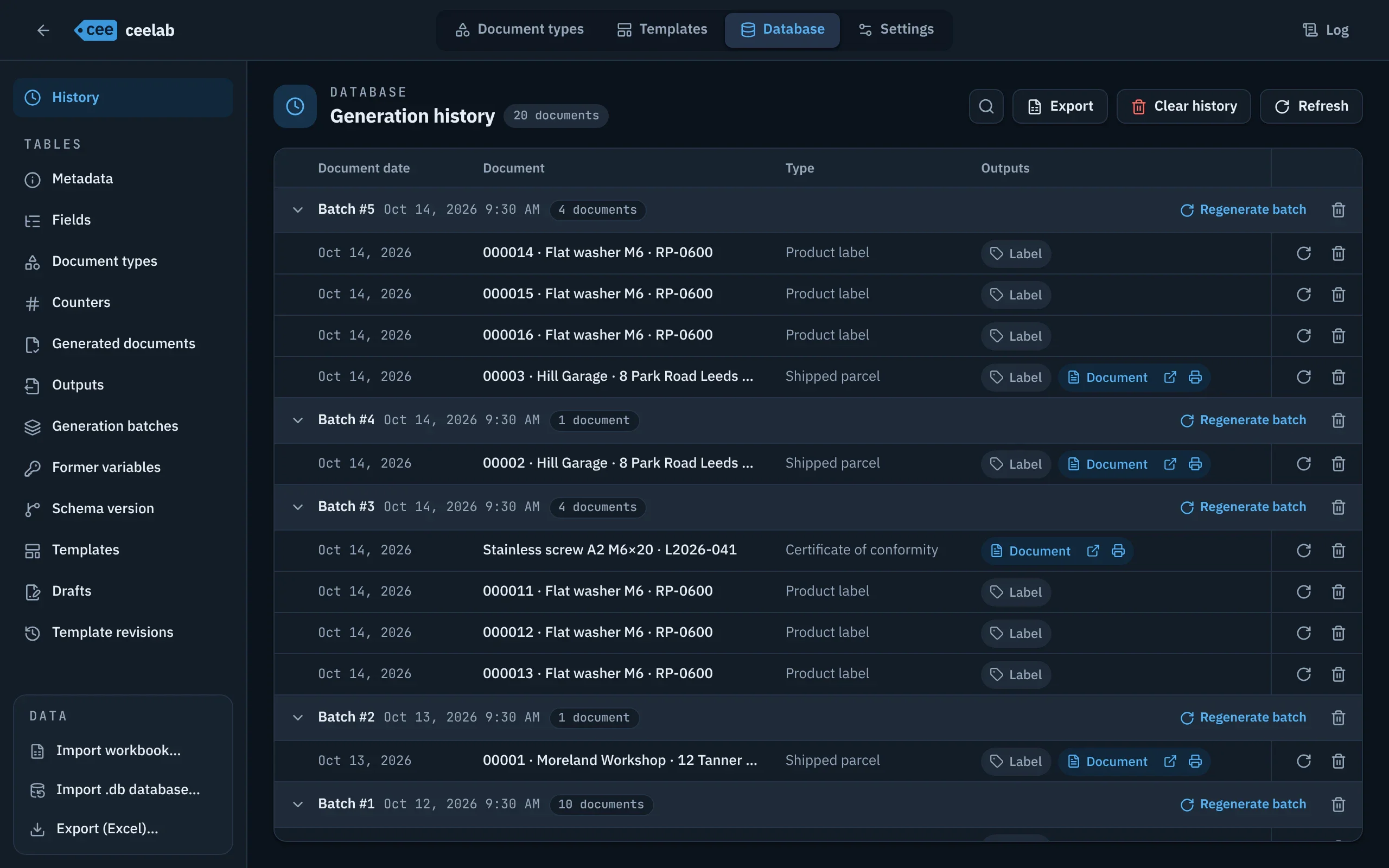
Database › History keeps every document produced, grouped by batch (“Batch #12 · Oct 8, 2026 2:32 PM · 12 documents”), with a search across the summary, the type and the values.
For each document: the status of its outputs, Preview, Open PDF, Reprint PDF to reprint the stored PDF, Regenerate exactly as before, Delete. The same actions exist for a whole batch. Export sends the displayed history to Excel.
Regenerating exactly as before
Regeneration reproduces the original document exactly: same values, same language, same date, same layout, even if the template or the type has changed since. No number is used up.
Documents printed with the cee command appear there too. A correction made with cee edit becomes a new document, linked to the original, which stays intact.
Exchanging with Excel
- Export (Excel)… saves your data to a workbook.
- Import workbook… brings back a workbook exported by ceelab, after you have edited it. Two modes: Add / update, which deletes nothing, or Replace contents.
- The import happens in one go: if it hits an error, nothing is changed, and the error is reported with its sheet, row and column.
To create or modify a document type, use the Document types tab instead: it checks your fields and updates everything that depends on them.
Backup
Export a backup regularly (Settings › Backup) and keep it off the computer: it holds your entire history. See Administration.