Templates and the lab
Draw a label or a document, place your information and calculations in it, start from a Word or LibreOffice document.
A template is the layout of a document: a label, printed on the label printer, or a document, saved as a PDF. Templates are drawn in the lab.
The gallery
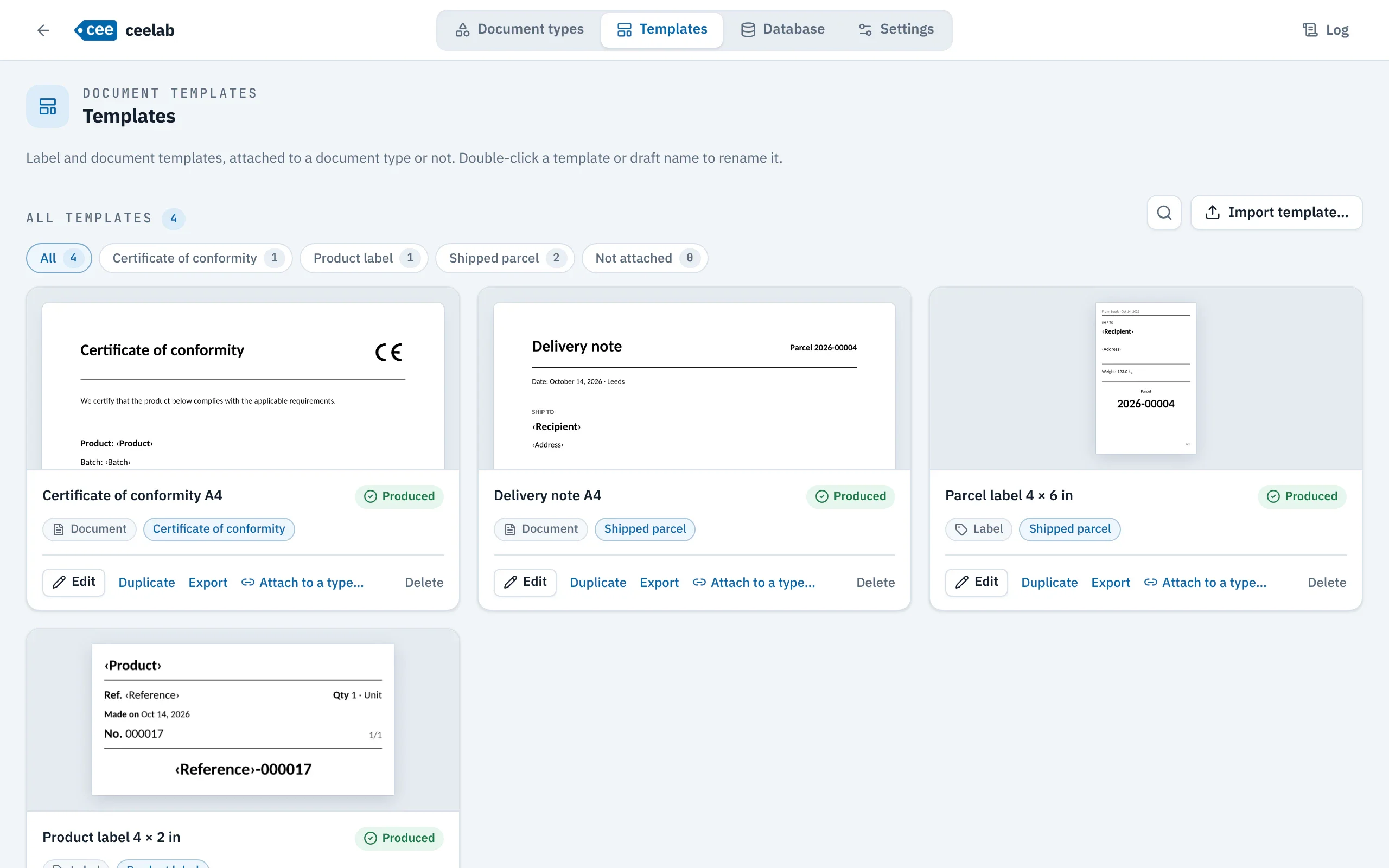
The Templates tab shows all your templates with their preview, filterable by document type (Not attached included). For each one: Edit, Duplicate, Export, Attach to a type… and Delete. Your work in progress is saved automatically.
The lab
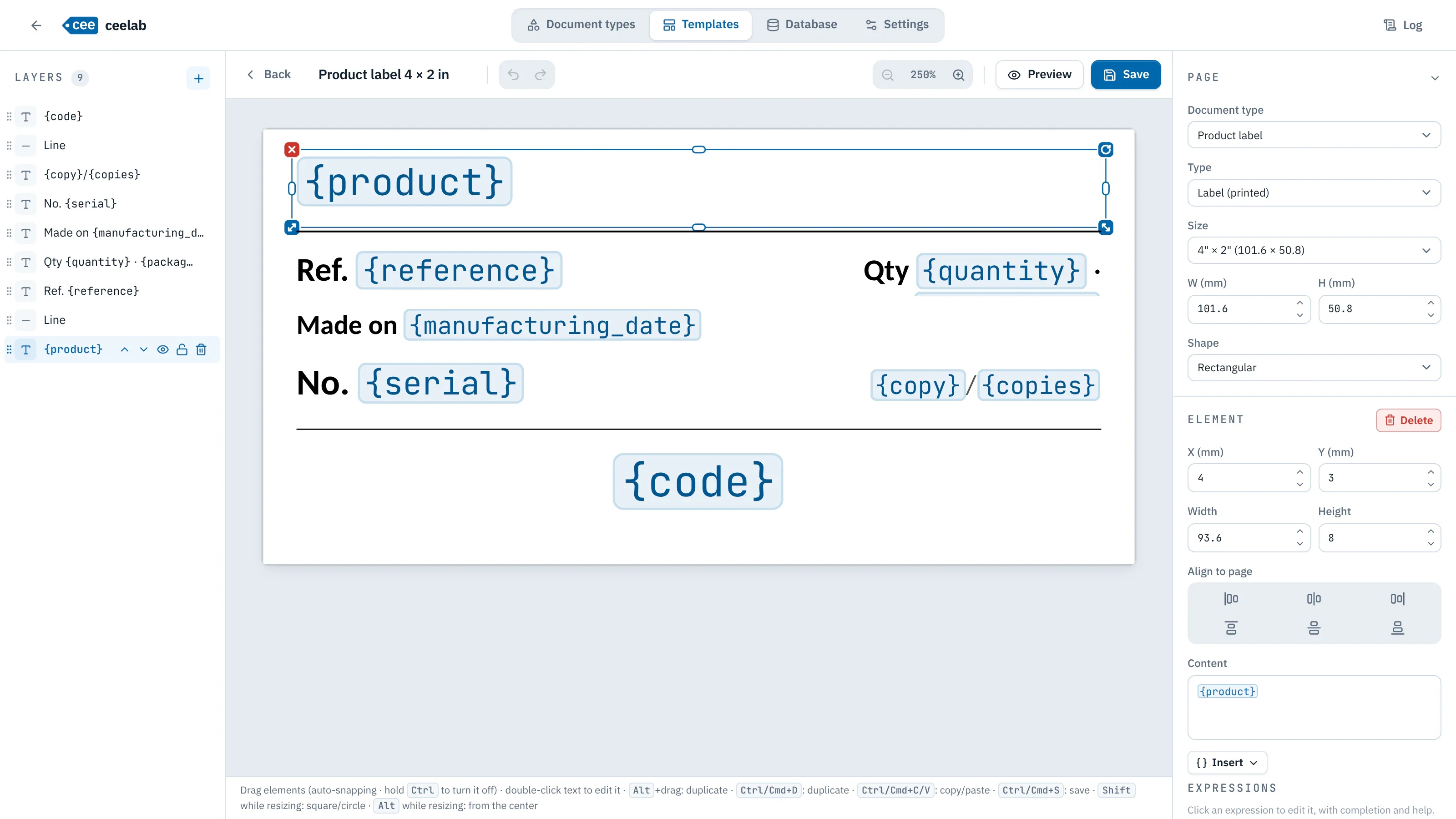
- Layers, on the left: one layer per element, which you can reorder, hide, lock or delete.
- Page, on the right: document type, label or PDF document, format. A label takes the size of your choice; a document is an A4 page.
- Element: position and size to the millimeter, alignment, content.
- Preview: the actual result, with sample values.
Available elements: text, images (PNG, JPEG, SVG, WebP or GIF), rectangles, ellipses, lines, CE and ATEX markings.
Drag with snapping (Ctrl to turn it off), double-click to edit a text, Alt+drag or Ctrl+D to duplicate, Ctrl+S to save.
Placing your information
The Insert a variable palette offers the fields of the type, then the automatic information ({date}, {copy}, {location}…), with their current value.
A text can also calculate: {if quantity > 100 then "Palette" else "Carton"}, {upper(reference)}, {copy}/{copies}. The Insert menu writes them for you:
- a Condition;
- a text By language of the document;
- a Formatted date, with a preview in the five languages;
- a Formatted number (fixed decimals or leading zeros);
- application Data.
The lab shows the result of each calculation on the sample values and flags any problem before saving. See Formulas and expressions.
Several templates per type
A type can produce several documents for each copy: those checked Produced on every generation all come out, with the same information and the same number. A parcel label and its delivery note, for example.
Sharing a template
A template is exported and imported as a .ceet file, to move it from one computer to another. Opening a .ceet file launches ceelab to import it.
Starting from a Word or LibreOffice document
A Word (.docx) or LibreOffice (.odt) document becomes a template, to be fine-tuned afterwards in the lab. For a Word document, the header and footer are brought in too.
Texts in square brackets become blanks to fill in: [date] gives the document date, and every other bracket becomes a piece of information to enter, with the bracketed text as its label. To attach the template to a type, Create and attach adds these fields to the type and attaches the template in one step.